


Microsoft Family Safety
3.92.38K Reviews
App Specs
- Version
- 2.0.7.1161
- Updated On
- License
- Free
- Downloads
- 5,000,000+
- Developer
- Microsoft Corporation
- Categories
- Parenting
- Platform
- Android, iOS
Screenshots
 Analysis by AppCompare
I find the hardest part of family screen-time rules isn’t setting a limit; it’s keeping everyone on the same page when a child is using a device away from home. Microsoft Family Safety brings parental controls and family oversight into a mobile app, but its usefulness depends on more than the controls themselves: parents and children need to understand the rules, and some parts of the experience depend on being connected. I’d treat it as a tool for making family routines clearer, not as a substitute for talking through them.
When the connection is part of the routine
Location sharing is most useful when it answers a practical question, such as whether a child has arrived after school or is still on the way. In that moment, the app can help a parent check in without sending a string of messages. It also makes the limits of location-based reassurance obvious: a map view is only helpful when the relevant devices can provide current information and the family has agreed to use sharing. I wouldn’t treat it as a guarantee of safety or a replacement for a direct call when something genuinely needs attention.
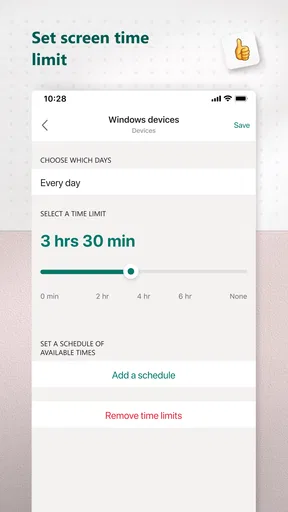
Screen-time controls have a different rhythm. A parent can set limits in advance, which is more manageable than negotiating every evening from scratch. The useful family habit is to agree on what the limit means before it takes effect: whether homework counts as device time, what happens when a school task runs long, and how exceptions should be handled. That conversation prevents a settings change from feeling like an unexplained punishment.
Connectivity matters most when a parent expects an immediate answer. If a location or activity view does not seem current, I’d first check whether the family member’s device is connected and whether the app has had a chance to refresh, then use a direct message or call if the situation is time-sensitive. That is a calmer response than repeatedly changing settings or assuming the app can resolve a network problem by itself.
A better fit for some households than others
This is a parenting app from Microsoft Corporation, and it makes the most sense for a household that wants a shared way to manage screen habits and family oversight rather than a collection of unrelated controls. Microsoft’s wider ecosystem is a natural fit if your family already uses its services; that can make the app feel like part of an existing routine instead of another account to remember. If your household uses a mix of platforms and services, I’d check that each family member’s setup supports the controls you actually plan to use before relying on them.
Compared with using only a device’s built-in screen-time settings, a family-focused app can put oversight and conversations in one place. Built-in controls may be enough if your goal is simply to set a limit on one child’s device, and they can be the simpler choice for a household that does not need shared family management. Family Safety is more appealing when parents want a broader view of family activity and location sharing alongside limits, but broader oversight also asks everyone to agree on how much monitoring feels reasonable.
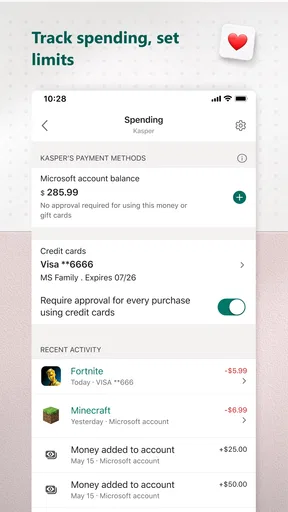
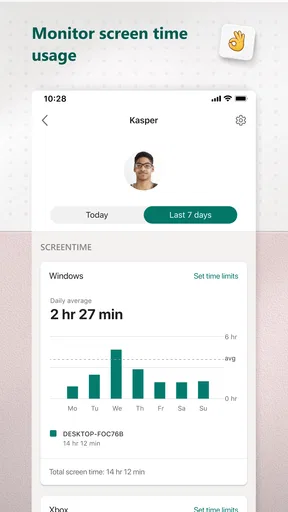
A realistic use case is a weekday school routine: a parent checks whether a child has made it to the agreed meeting point, then later reviews screen habits together when there is a concern about time spent on devices. The report is more useful as a starting point than as a verdict. For example, an unexpected spike might reflect a new app or a one-off busy day; asking what happened is more constructive than immediately tightening every limit. I’d use the information to spot patterns and make a specific adjustment, rather than turning every report into a daily inspection.
Worth Reading Before You Choose

Flipboard Shows What News Apps Must Do Beyond the Feed

Switching to Android Auto Means Rethinking Your Driving Routine

Google Calendar Makes a Crowded Week Easier to Manage

Ludo King Makes the Most of the Minutes Between Plans

Baby Panda World Brings Quick Play to Modern Phones, but Its Game Library Feels Busy

ESPN’s Live Game View Makes Following Close Games Easier
What to consider before relying on it
One practical question is whether the app suits every age in a family. It is rated Everyone, but the right level of parental oversight still depends on the child and the household’s expectations. Younger children may need clear, simple rules and more direct help; older children are more likely to respond well when limits and location sharing are discussed as mutual agreements. I’d explain what is being shared, who can see it, and when a check-in is expected, rather than presenting monitoring as invisible.
Another question is what to do when a control seems not to have the expected effect. I’d avoid making several changes at once. Check the relevant family member and device, confirm the intended limit or filter, and give the app time to reflect the change while connected. If the issue is urgent, use the device’s own settings or contact the family member directly instead of assuming the app is the only route. Keeping a simple household rule in mind also helps: technology can support a boundary, but it cannot settle a disagreement about what the boundary should be.
There is a trade-off between detail and ease. Reports about device time and app habits can reveal patterns that are hard to notice in the moment, but they can also tempt parents to focus on totals instead of context. A useful approach is to review them at a planned time, look for one change worth discussing, and leave ordinary fluctuations alone. That keeps the tool from becoming a source of constant checking and makes the numbers more likely to lead to a practical conversation.
Getting Started with Microsoft Family Safety
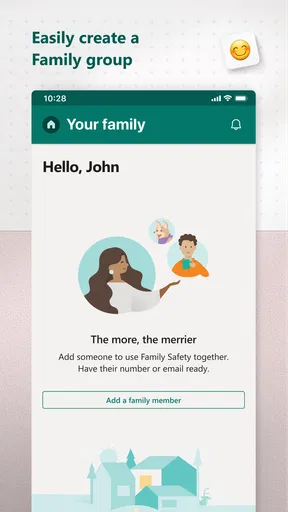
First things first, setting up Microsoft Family Safety is a breeze. You just download it from your app store, and within minutes, you can invite family members to join your digital family hub. What I love is how intuitive the interface is—it really feels like Microsoft thought about how hectic family life can be and made something super user-friendly.
Features That Stand Out
Now, let's dive into those features that really caught my eye. The app offers location sharing, which is perfect for giving you peace of mind when the kids are out and about. You can see where they are in real-time, and they can check in with you with a simple tap. No more worrying if they’re late coming home from school!
Another feature that I find incredibly useful is the ability to set screen time limits. I mean, who hasn’t struggled with getting the kids to unplug? With this app, you can set specific time limits for different devices, ensuring they balance screen time with other activities. It’s like having a digital nanny!
Insights and Reports
One of the standout features is the activity reports. Every week, you get a detailed breakdown of how much time family members are spending on their devices and what apps are their go-to. This is a great way to start conversations about digital habits and even discover new apps they're into.
Parental controls are also robust, allowing you to block specific apps and websites. This is perfect for keeping younger kids away from content that isn’t age-appropriate. Plus, if your kids are older, you can set up content filters that match their maturity level.
Why You Might Love It
If you're looking for an app that helps you manage your family's digital life with ease, Microsoft Family Safety should definitely be on your radar. The app integrates seamlessly with other Microsoft services, which is great if you're already in their ecosystem. Plus, the peace of mind it offers is priceless.
In a world where digital safety is more important than ever, having an app like this is a no-brainer. Give it a try and see how it fits into your family’s lifestyle. Trust me, you’ll wonder how you managed without it!
Cost, compatibility, and expectations
For a family deciding whether to try it, the practical details are reassuring: the app is free, has an Everyone age rating, and is currently version 2.0.5.1103, with Android 9 as the minimum operating-system requirement. It has an average rating of 3.9 from around 46,000 ratings, alongside around 2,300 written reviews, and has passed over 5 million installs. Those figures suggest a widely used option, but they do not tell me whether its approach will suit a particular household; the important test is whether the controls fit the devices and routines your family actually uses.
I’d also think about who should skip it. If your family wants a simple timer for one device, the built-in controls may involve less setup. If your children are old enough to manage their own routines and location sharing would create unnecessary tension, a family conversation and a smaller set of device-level boundaries may be a better fit. And if you need a dependable live update in a situation where connectivity is uncertain, I would not make any parental-control app the sole plan.
Making it useful without making it intrusive
A small but helpful workflow is to decide on one purpose before changing settings. Start with a specific pain point—late-night scrolling, a recurring disagreement about device time, or a need for an agreed arrival check-in—then use only the relevant control. This makes it easier to see whether the setting helped. It also avoids the common trap of enabling every option at once and leaving parents unsure which change caused a child’s frustration.
For screen-time rules, I’d review the schedule when the family calendar changes, such as during a different school routine or a busy weekend. A rule that works on an ordinary weekday may be awkward when a child needs a device for a longer task. Agreeing on how to handle an exception ahead of time is more effective than improvising while everyone is already annoyed. The app can help enforce a plan, but parents still need to decide what a fair plan looks like.
For location sharing, the best use is usually a narrow, understandable agreement: who is sharing, for what reason, and what a check-in should mean. That approach is less likely to turn a convenience into constant surveillance. It also gives older children a chance to raise concerns and helps parents distinguish routine reassurance from an actual need to contact someone.
My connectivity verdict
Overall, Microsoft Family Safety is a practical choice for parents who want to combine screen-time guidance, activity awareness, and family location sharing in one place, especially when Microsoft services are already familiar at home. Its strongest role is supporting a routine that parents and children have discussed—not silently solving every disagreement or guaranteeing that a location view is current at every moment. I’d try it if your family wants shared oversight and is comfortable making expectations explicit; I’d choose simpler built-in controls if you only need a basic limit, or a direct call if an immediate answer matters more than an app view.
Pros
- User-friendly interface
- easy to navigate.
- Comprehensive location tracking features.
- Customizable screen time limits.
- Seamless integration with Microsoft services.
- Real-time activity reports for parents.
Cons
- Limited features on iOS compared to Android.
- Requires Microsoft account for full access.
- Some features may drain battery quickly.
- Premium features require a subscription.
- Occasional sync issues between devices.
FAQs for Microsoft Family Safety
What is Microsoft Family Safety, and how does it work?
Microsoft Family Safety is a comprehensive app designed to help families manage and balance screen time across devices, set content filters, and track location. It works by allowing parents to set up family groups and customize settings for each member. This ensures that children have a safe and monitored digital experience, promoting healthy habits.
Is Microsoft Family Safety available on both Android and iOS devices?
Yes, Microsoft Family Safety is available for both Android and iOS platforms. This cross-platform functionality allows families to manage and monitor devices seamlessly, regardless of the operating system. Users can download the app from Google Play Store for Android or the Apple App Store for iOS devices.
Can Microsoft Family Safety track real-time location of family members?
Yes, Microsoft Family Safety includes location tracking features that allow parents to view the real-time locations of their family members. This feature is particularly useful for ensuring safety and planning family activities, providing peace of mind to parents when their children are out and about.
How does Microsoft Family Safety help manage screen time?
The app lets parents set daily screen time limits for each device and app, helping to encourage balanced digital usage. Parents can schedule time for specific activities and pause screen time as needed. These tools are designed to help families establish healthy digital habits and prevent excessive screen time.
Are there content filtering options available in Microsoft Family Safety?
Yes, Microsoft Family Safety offers robust content filtering options that enable parents to block inappropriate websites and set age-appropriate content restrictions. This ensures children are exposed only to suitable content, fostering a safer online environment. Parents can customize these settings to match the maturity level and needs of each child.


